17/09/2026 · Setup guides
Choose how a Build is delivered, and import it
Snapshot import versus a direct install into a connected sub-account: the Delivery step, the usepicked base snapshot, the readiness check and the activation checklist.
By The usepicked team
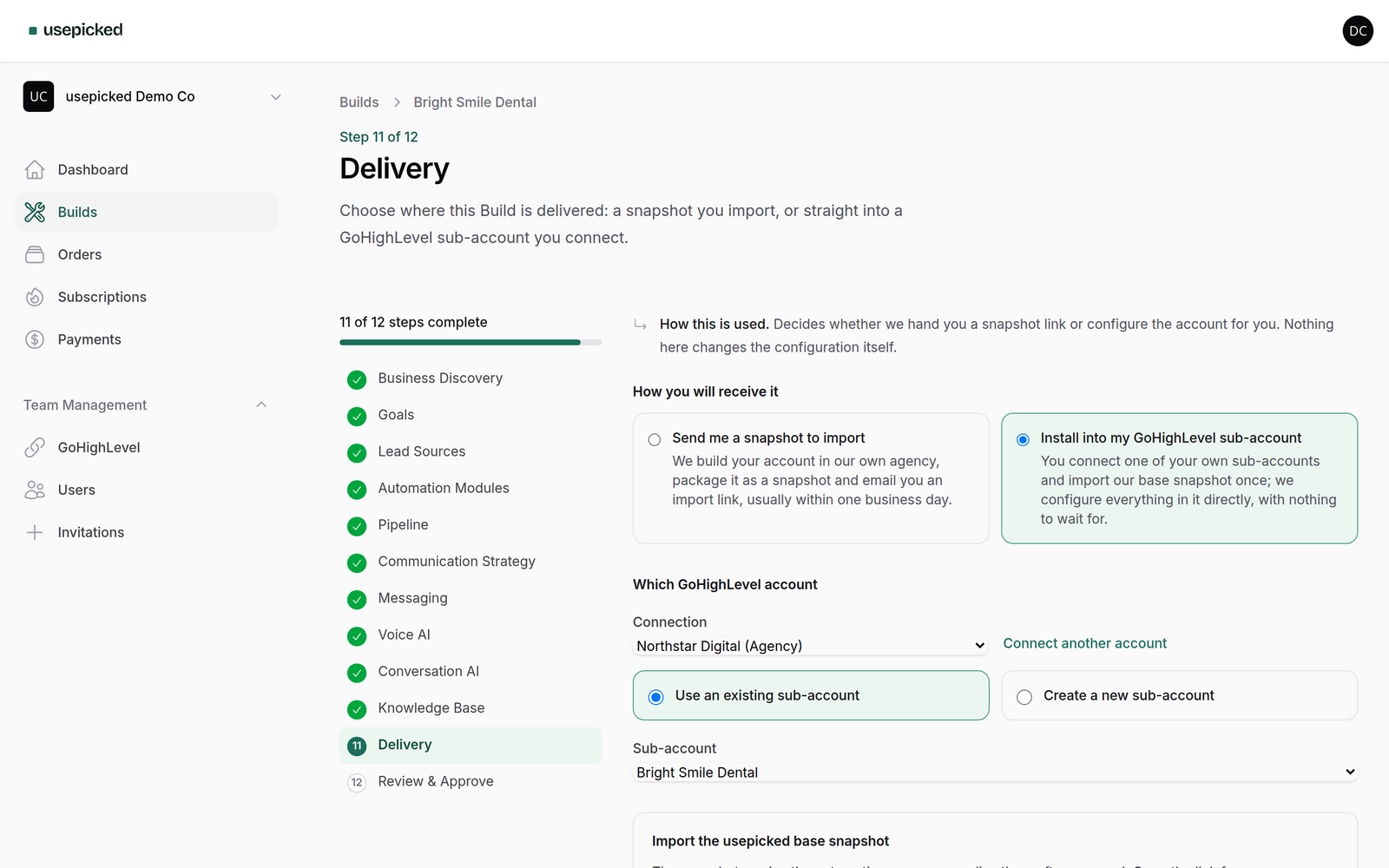
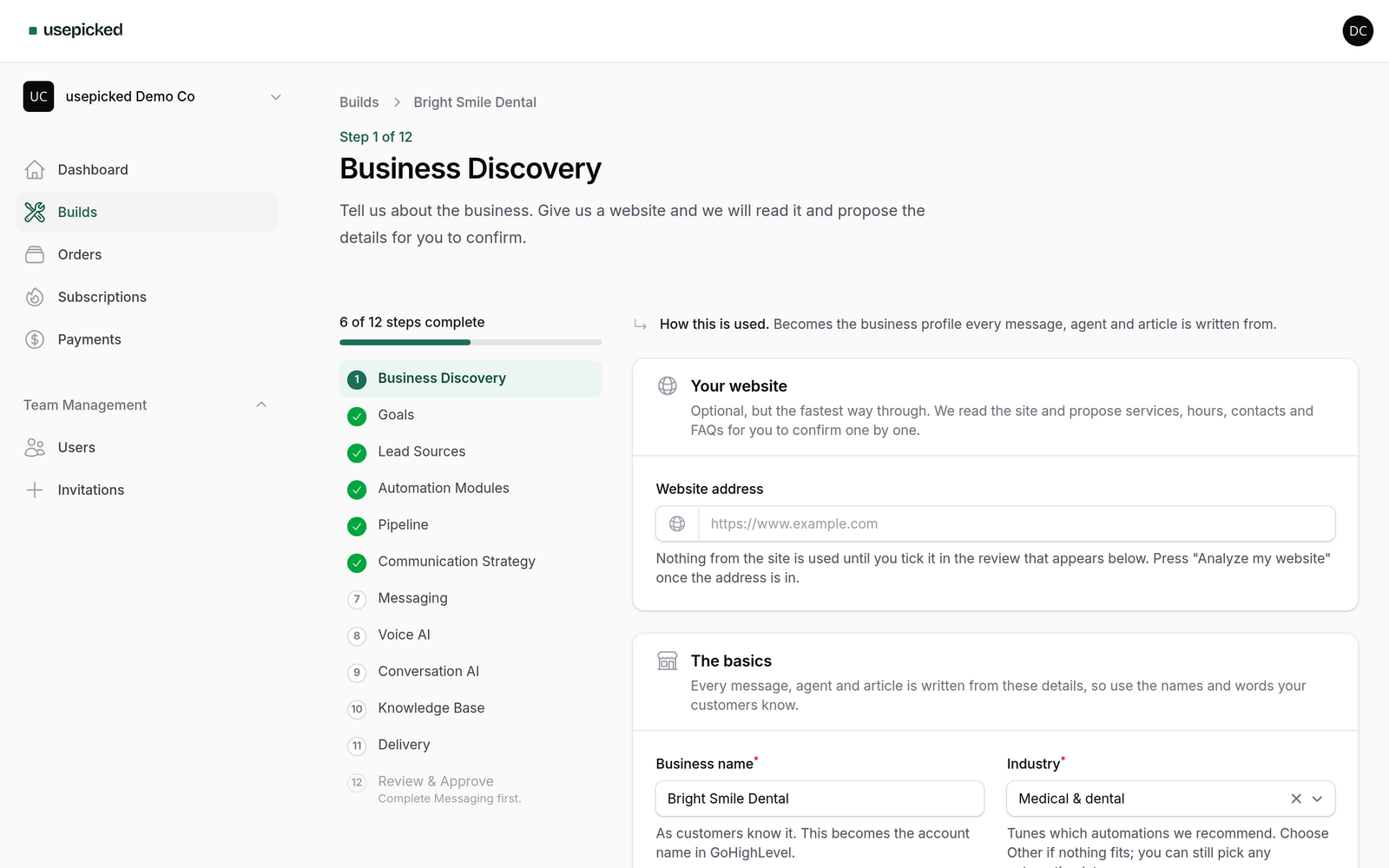
The Delivery step (step 11 of the wizard) decides how a Build reaches GoHighLevel. Nothing on it changes the configuration itself; it only chooses between two routes. This guide explains both, how to import a snapshot, what the usepicked base snapshot is, and what to do after the Build is in the account.
The two routes
| Send me a snapshot to import | Install into my GoHighLevel sub-account | |
|---|---|---|
| Where it is built | A temporary sub-account in the usepicked agency | A sub-account in your own agency |
| What you need | Any GoHighLevel agency you can import snapshots into | A connected agency or sub-account (app install or private token) |
| What you do | Open the import link, choose the destination | Pick or create the sub-account, load the base snapshot once |
| When it is ready | Usually within one business day of approval; our team packages the snapshot | As soon as provisioning finishes; nothing to wait for |
| Availability | Every plan | Early access; shown on the Delivery step when it is open for your workspace |
Both routes produce the same system: pipeline, workflows, custom values, message templates, AI agents and knowledge base. Both end with the same activation checklist.
Route 1: a snapshot you import
- On the Delivery step choose Send me a snapshot to import and continue to Review.
- After approval, provisioning builds the account in a temporary sub-account under the usepicked agency. The workspace timeline shows Account set up when it is done.
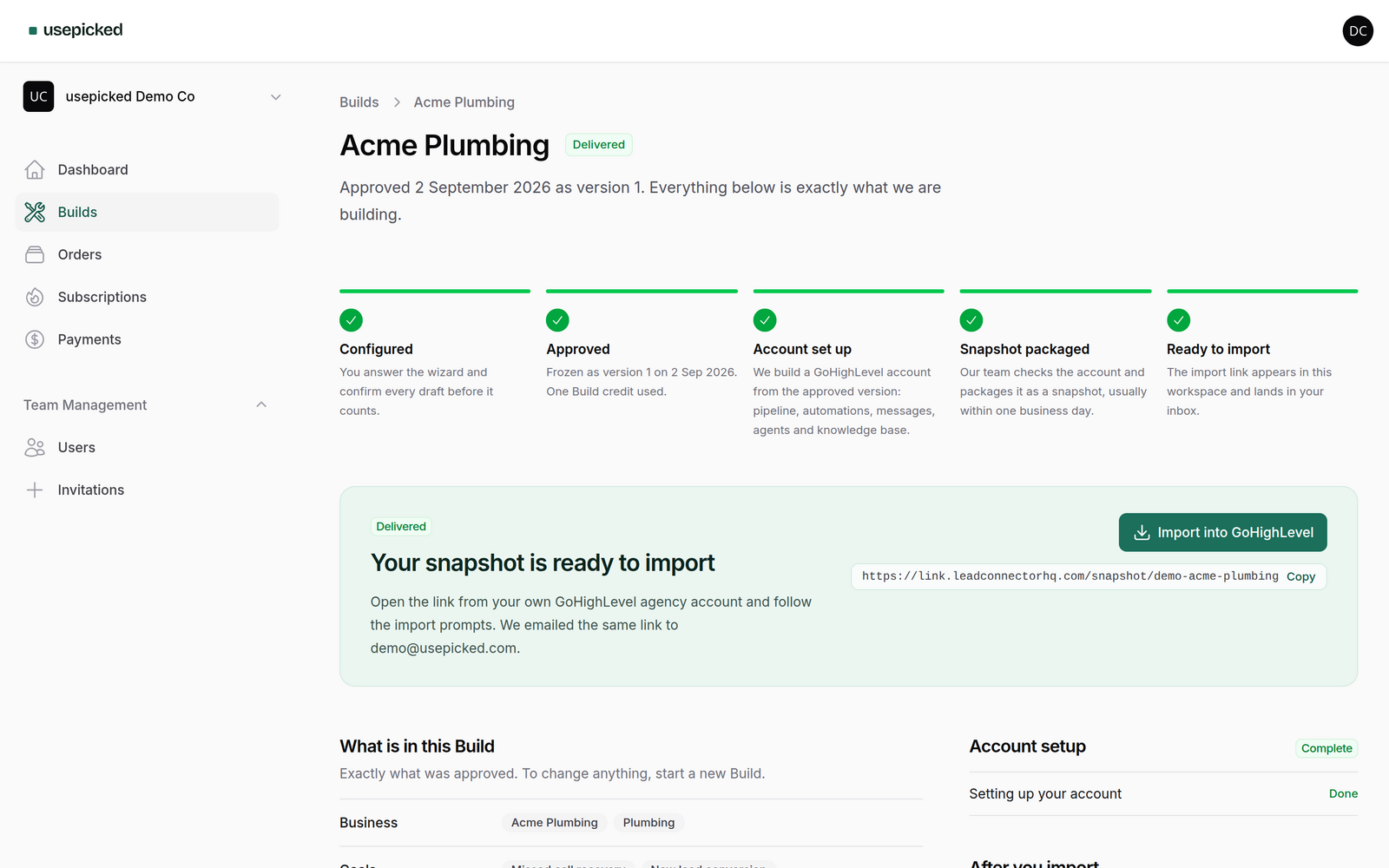
- Our team checks the account and packages it as a GoHighLevel snapshot. The workspace then shows Import into GoHighLevel with a copy button, and the same link is emailed to whoever created the Build.
- Open the link while signed in to your own agency. GoHighLevel shows the snapshot with an Import action; choose the sub-account it goes into, or create a new one there.
- After the import, finish the activation checklist (below). The temporary sub-account on our side is deleted after delivery.
Route 2: straight into a connected sub-account
This route skips the packaging wait. usepicked writes the approved Build directly into a sub-account you own. It is in early access: the option appears on the Delivery step once it is enabled for your workspace, and it needs a connected GoHighLevel account.
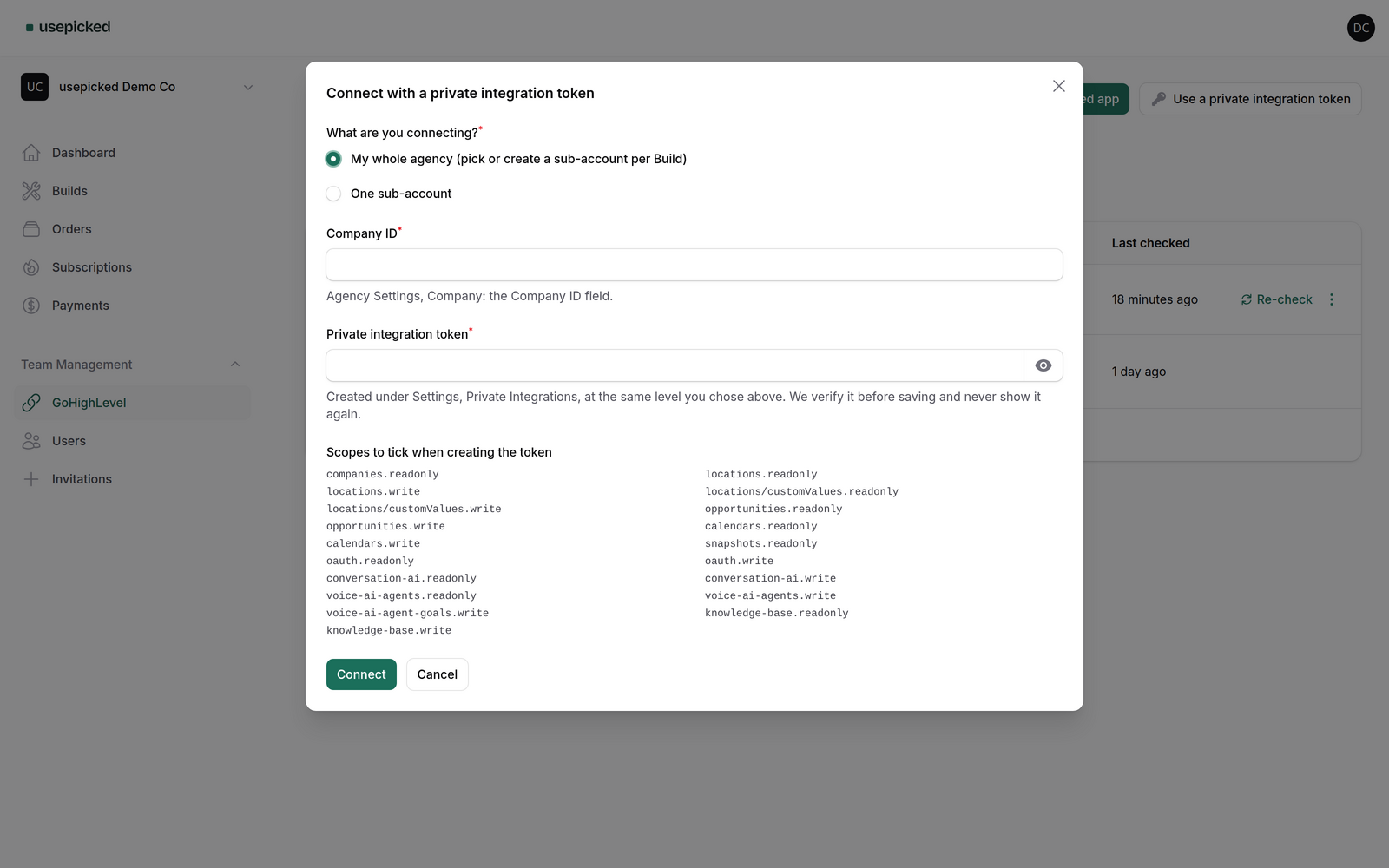
- Choose Install into my GoHighLevel sub-account. If no account is connected yet, the step links to the GoHighLevel page where you install the app or paste a private token; come back afterwards and the connection is listed.
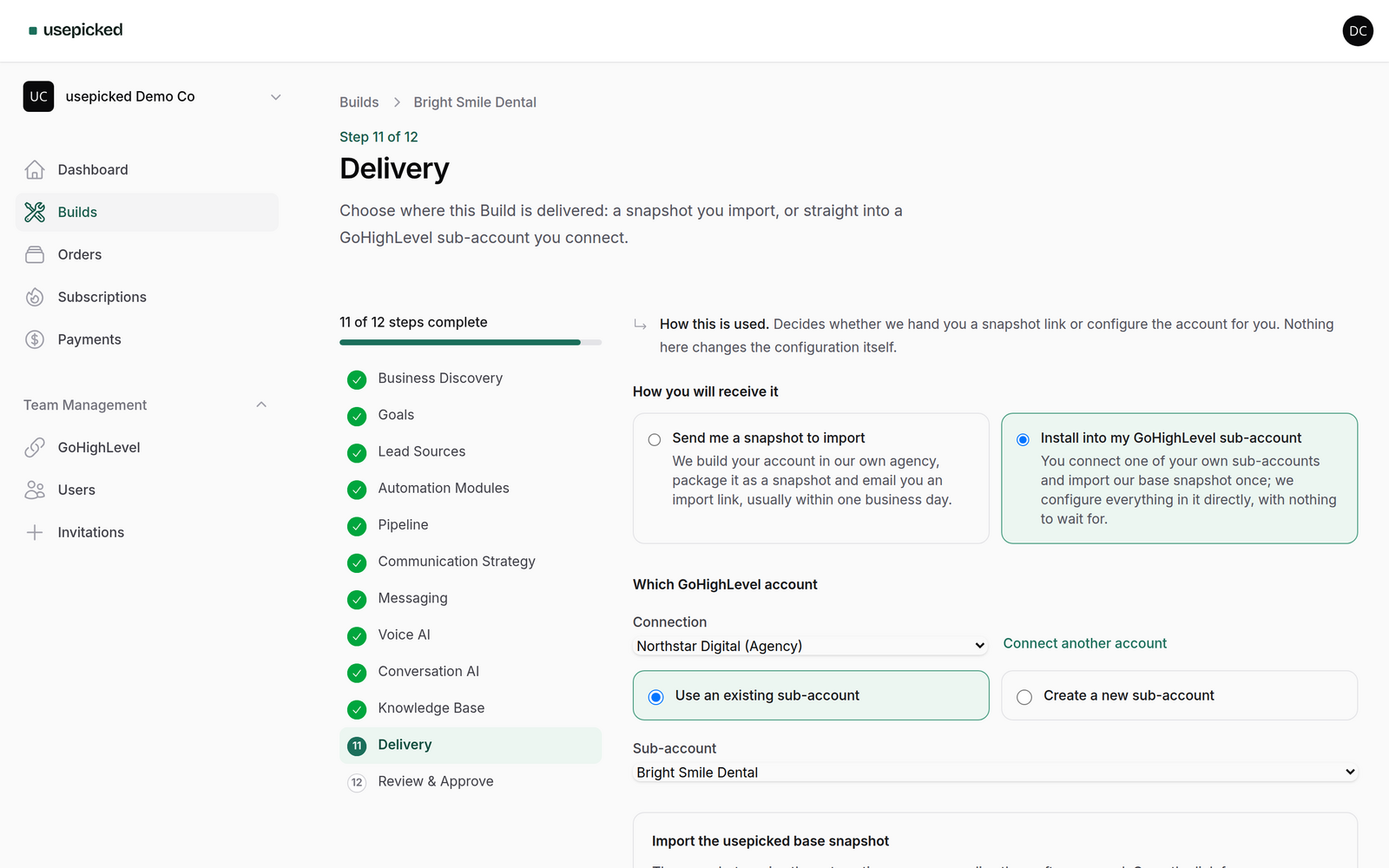
- Pick the connection. A sub-account connection is preselected as the target. An agency connection lets you choose Use an existing sub-account or Create a new sub-account.
- For an existing sub-account, pick it from the list. On an agency connected through the app, only sub-accounts where the app is installed can be chosen; the others are greyed out with a note to install it there first. Private-token connections can target any sub-account.
- For a new sub-account, type its name and click Create sub-account. It is created in your agency with the phone and timezone from Discovery. If your GoHighLevel plan does not allow API sub-account creation, usepicked tells you and you can create it in GoHighLevel and pick it instead.
Load the usepicked base snapshot once
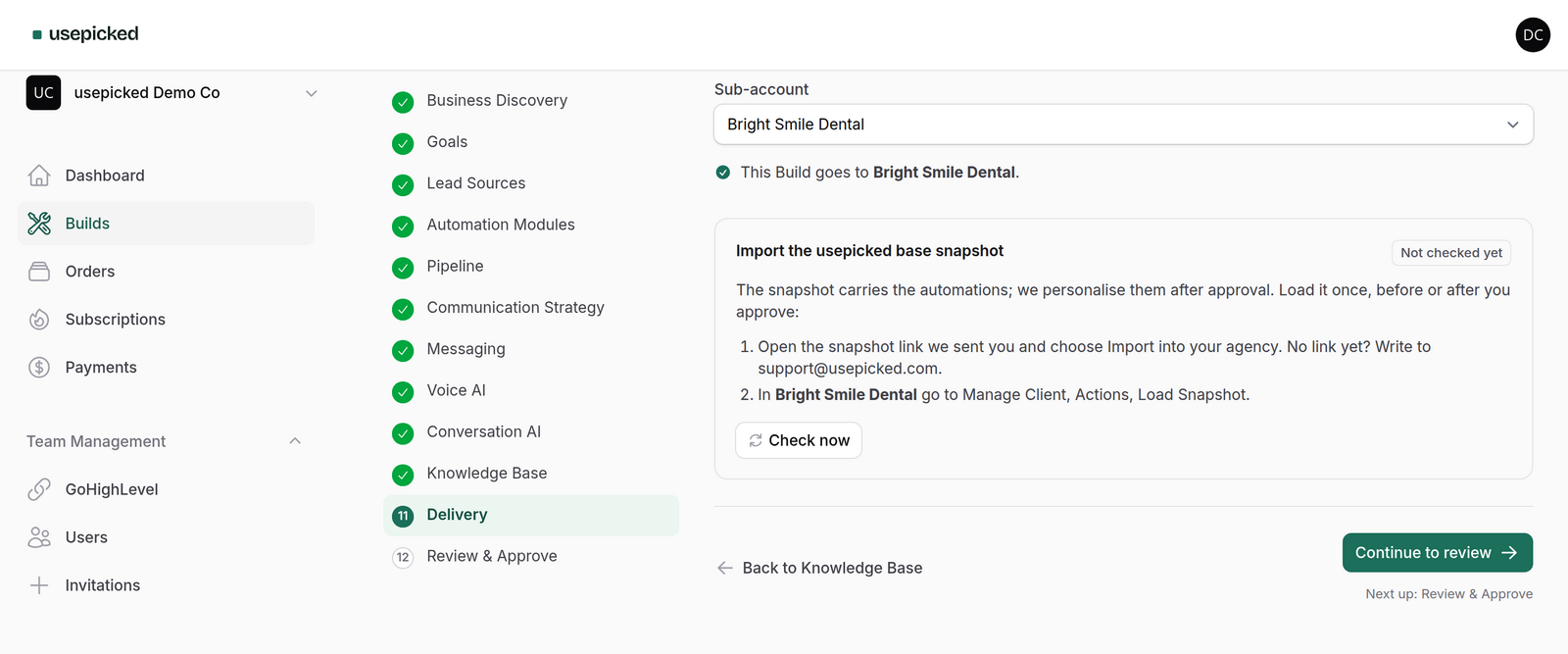
The base snapshot carries the automations and templates; usepicked personalises them after approval. Each target sub-account needs it exactly once.
- In the Import the usepicked base snapshot box, open the snapshot link and choose Import into your agency.
- In the target sub-account go to Manage Client → Actions → Load Snapshot and load it.
- Back in usepicked click Check now. The badge changes from Not there yet to Found in the sub-account when the snapshot is detected. You can approve before this; approval simply waits at Connected until the check passes, and usepicked re-checks every few minutes on its own.
After approval
Provisioning writes the pipeline, custom values, calendars, agents, knowledge base and approved messages into the sub-account step by step. Each step is retried on its own if GoHighLevel answers slowly, and the workspace timeline moves to Ready to use when the last step finishes. If the connection is revoked in the meantime (uninstall or a deleted token), the Build pauses and the workspace says so; connect again and our team resumes it from the step it stopped at, with nothing to redo on your side.
Changing your mind
The delivery choice can be changed at any time before approval, and while a Build is waiting at Connected you can still switch the target sub-account or the connection. After provisioning has started, the target is fixed for that Build.
The activation checklist
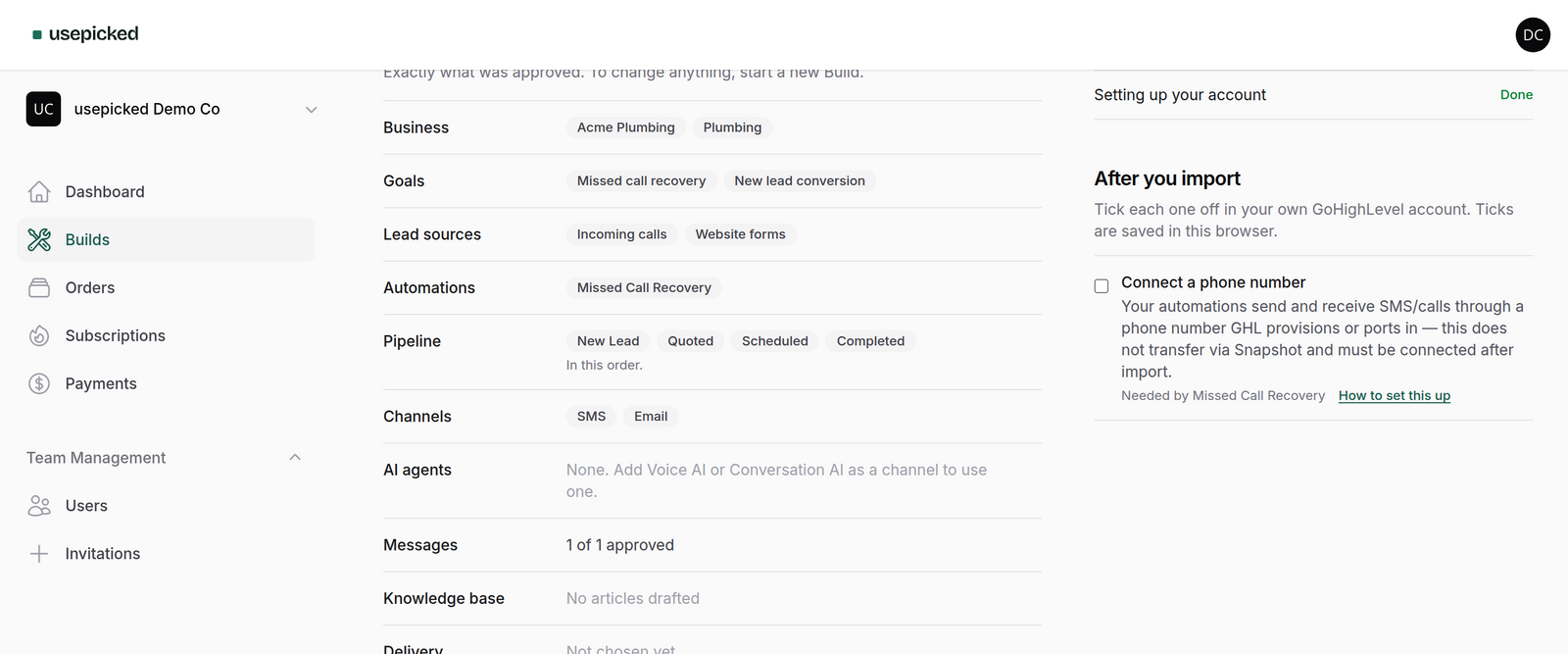
Snapshots and direct installs carry structure, not connections. Phone numbers, email sending domains, calendar accounts and Google Business Profile are bound to the account and have to be connected inside GoHighLevel. Every delivered Build shows After you import: only the items its modules need, why each is needed and a link to the right GoHighLevel documentation. Tick them off as you go; ticks are saved in your browser.