17/09/2026 · Setup guides
Using usepicked inside GoHighLevel
The embedded app: sign-in from the sidebar, agency versus sub-account views, what opens in a new tab, white-label domains and the fixes for the usual sign-in hiccups.
By The usepicked team
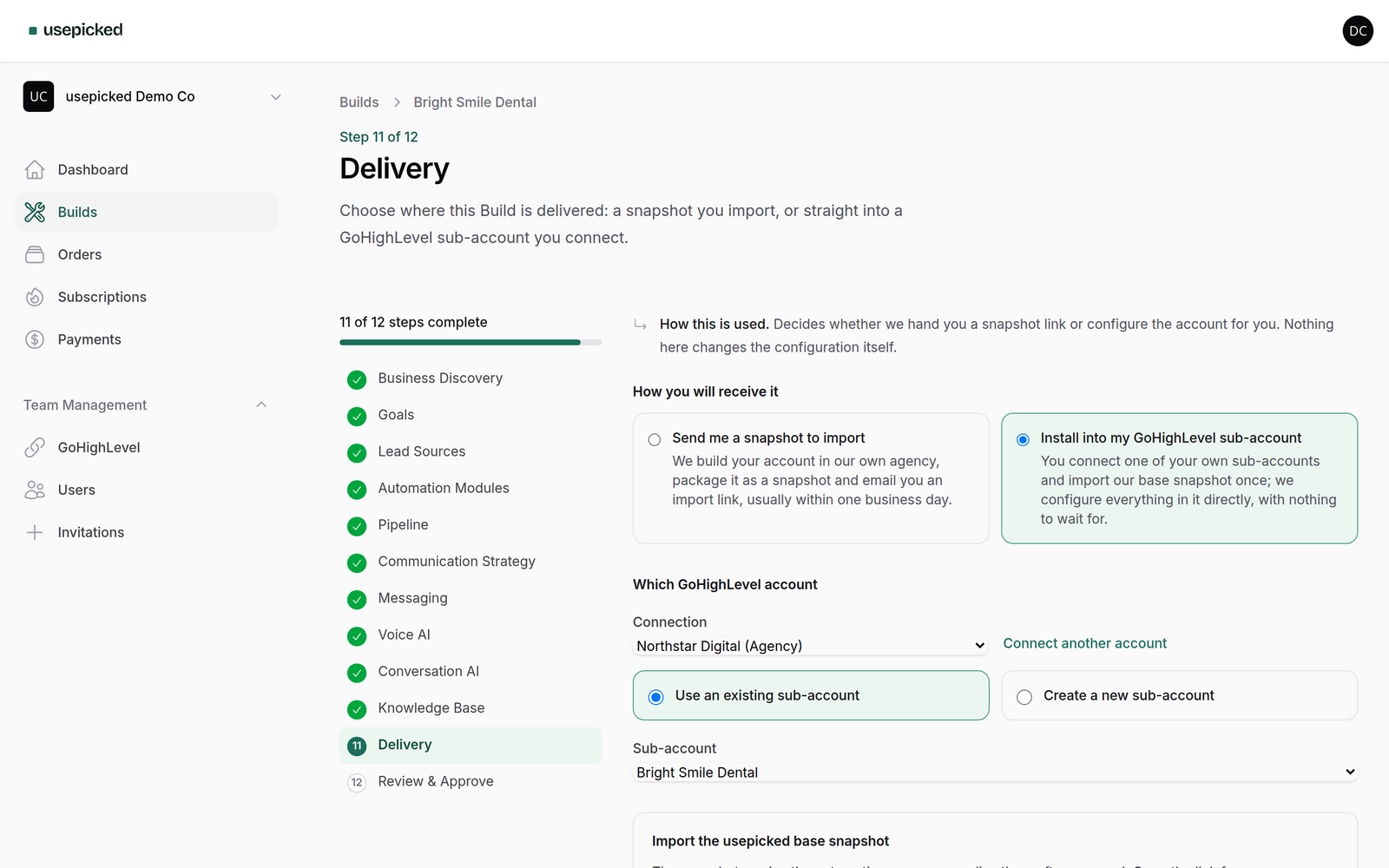
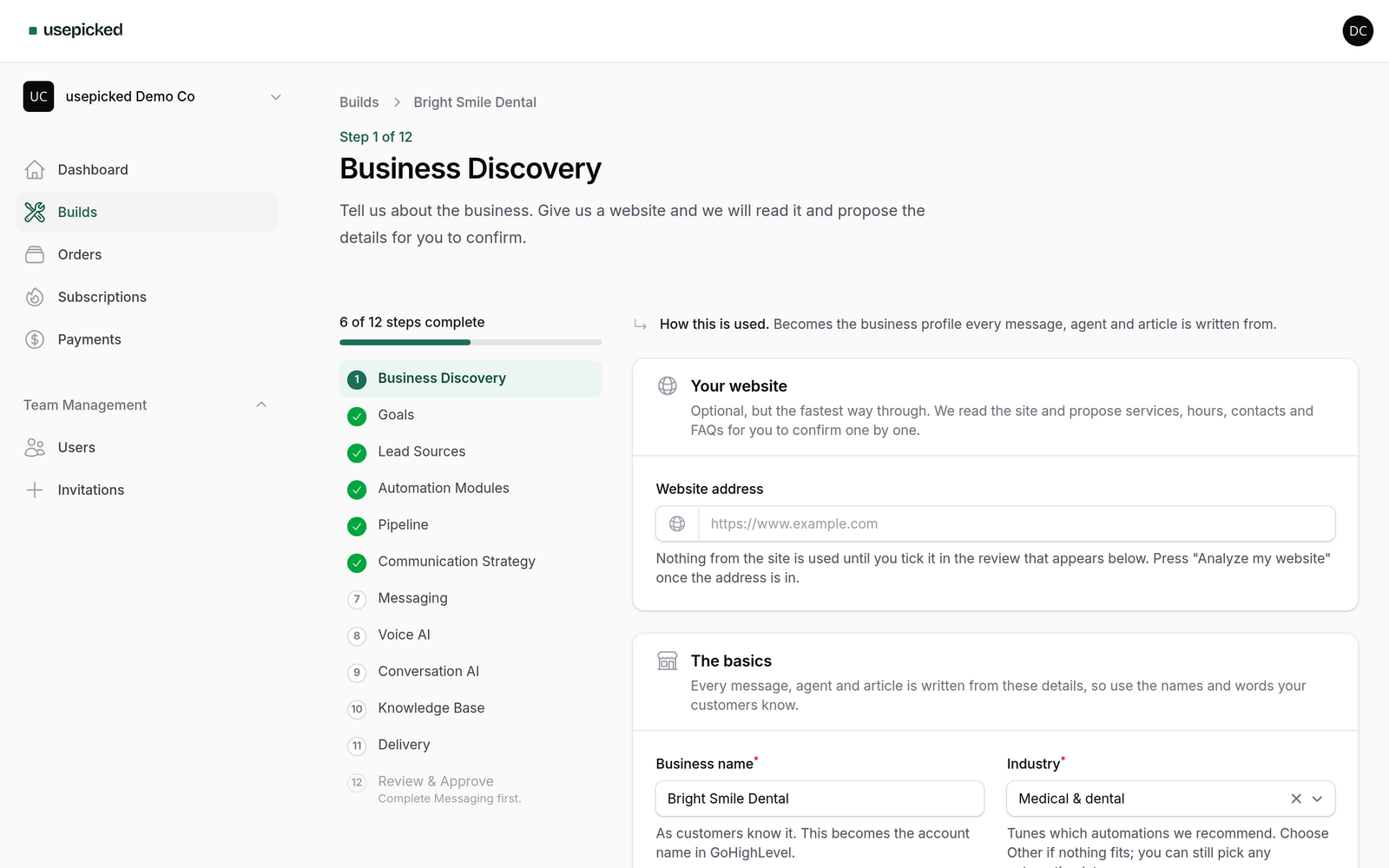
Once the usepicked app is installed, the full customer workspace runs inside GoHighLevel's left sidebar: Builds, the wizard, delivery, team and subscription. This guide covers what changes when you work from there, at agency level and inside a sub-account, and the few things that open in a new tab.
Opening usepicked from the sidebar
- In GoHighLevel, click usepicked in the left navigation of the agency view.
- GoHighLevel hands the app an encrypted description of who you are; usepicked verifies it and signs you into the matching workspace. There is no separate password. The shared secret that protects this handshake never reaches the browser.
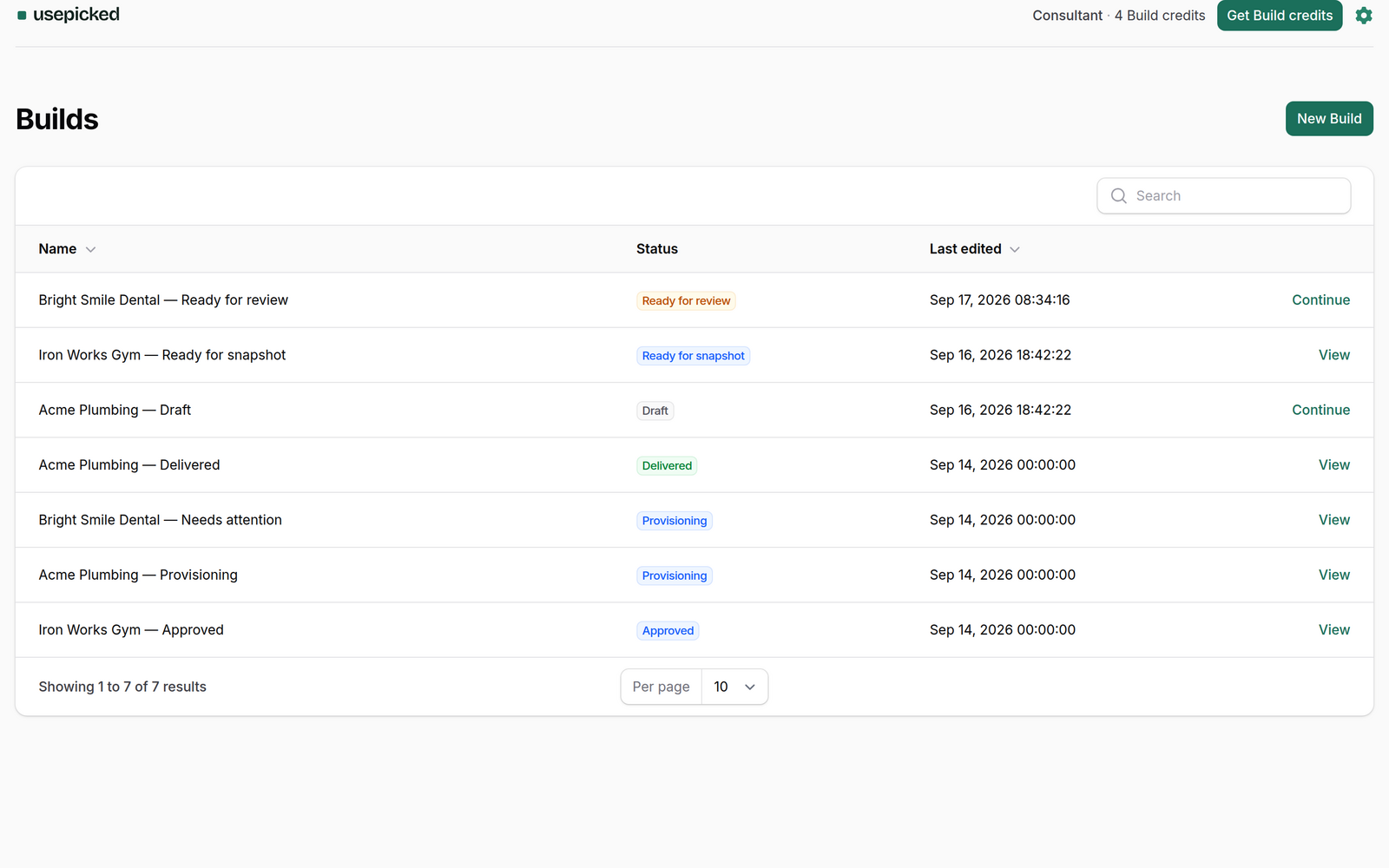
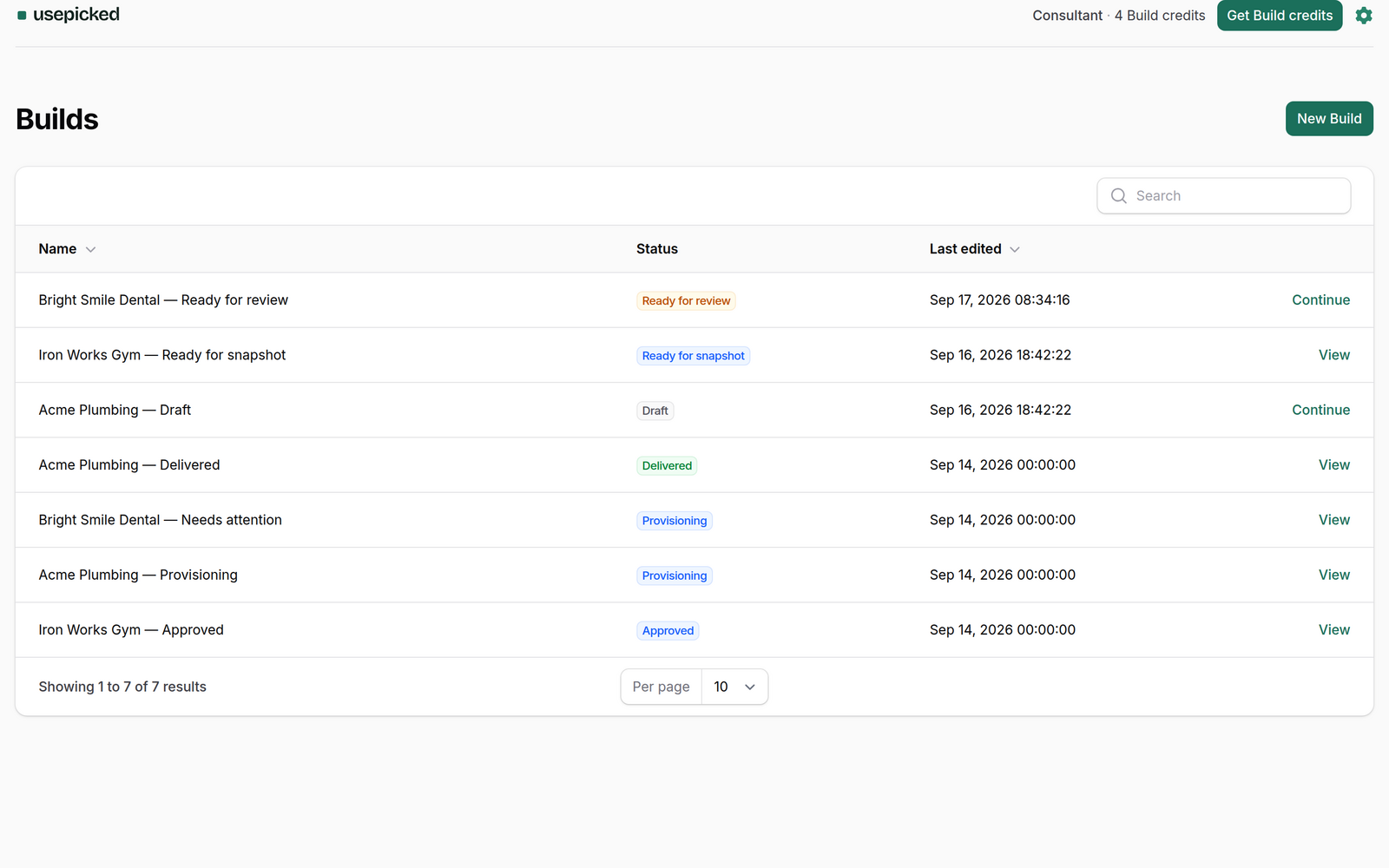
- You land on the Builds list with a slim header: your plan and remaining credits, a settings menu, and, if the workspace has no live connection for this agency, a Connect your GoHighLevel agency button.
Who becomes what
- The workspace is chosen from where you opened the app: the workspace linked to this agency, or to this sub-account when opened from inside one.
- You are matched by your GoHighLevel user id, then by email. If neither matches, a usepicked user is created for you with the email GoHighLevel reports, already verified.
- Agency owners and agency admins are workspace admins; everyone else gets the user role. Roles are never downgraded by an SSO open, so an admin you promoted in usepicked stays an admin.
- Signed-in sessions inside GoHighLevel last twelve hours and are separate from your usepicked.com session.
Agency level versus inside a sub-account
| Opened from | Builds list | New Build |
|---|---|---|
| The agency view | Every Build in the workspace | Untargeted; you choose delivery on step 11 |
| Inside a sub-account | Only Builds targeted at that sub-account (admins can switch to all) | Pre-targeted at that sub-account with connected delivery, when that route is available |
Opening usepicked inside a sub-account requires the app to be installed on that sub-account. If the sub-account view is not offered in your sidebar, install the app there from the Marketplace, or work from the agency view and pick the sub-account on the Delivery step.
What opens in a new tab
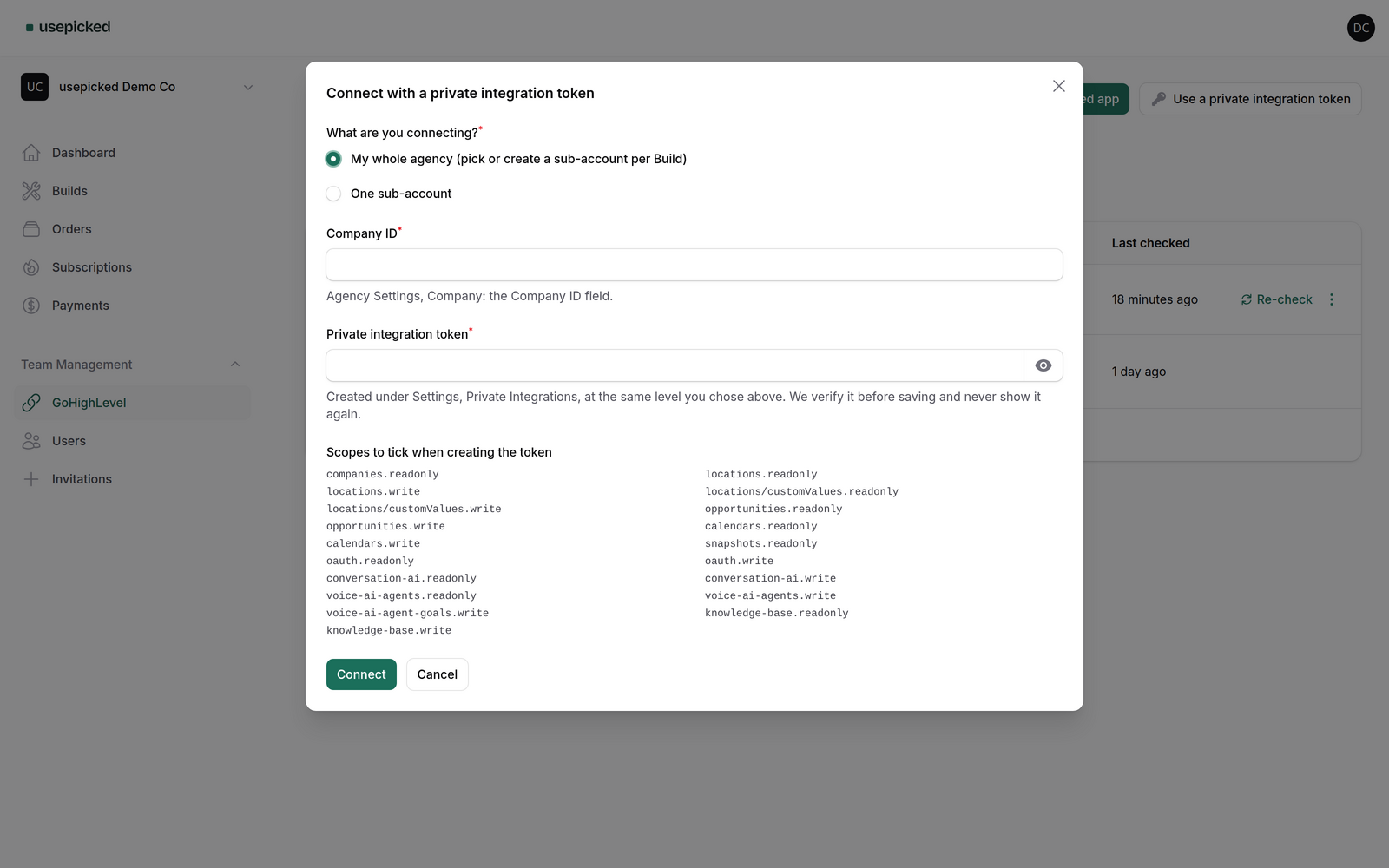
Two things cannot run inside another site's frame and open in a new tab instead: checkout (Upgrade and Get Build credits in the header) and the GoHighLevel install screen (Connect your GoHighLevel agency). Both use a single-use link that signs you in on usepicked.com for that tab; close it when you are done and continue inside GoHighLevel. Changes made there (a new plan, a new connection) show up in the embedded header within about fifteen seconds.
The settings menu
The gear in the header opens Team (invite teammates or a client with view or manage rights on Builds), GoHighLevel connections, Workspace settings and Subscription. They are the same pages as on usepicked.com, scoped to the workspace you opened.
White-label agencies
If your agency serves GoHighLevel from its own domain, the header shows your logo with a small Powered by usepicked line, and the embed is allowed to load on that domain. If the sidebar entry shows a blank frame on a white-label domain, the domain has not been allowed yet; write to support with the hostname and it is added.
Troubleshooting
- The boot page stays on "Connecting to GoHighLevel…". Reload once. If it persists, GoHighLevel did not answer the identity request; sign out and in on GoHighLevel and try again.
- "One more step" with a Continue button. The browser blocked the sign-in cookie inside the frame. Click Continue to grant it. Safari and Firefox may refuse; use Chrome or open usepicked.com in its own tab.
- You see a different workspace than expected. Your GoHighLevel user opened a workspace linked to this agency. Ask its admin to invite you to the right one, or open the workspace switcher on usepicked.com.
Related: install the usepicked app and your first Build.