17/09/2026 · Setup guides
Connect your GoHighLevel agency or sub-account with a private integration token
Where to create the token in GoHighLevel, which scopes to tick, how usepicked verifies it, and what Re-check, Refresh and Disconnect do afterwards.
By The usepicked team
A connection is what lets usepicked read your sub-accounts and, when you choose connected delivery, configure a Build straight into one of them. There are two ways to create one: install the usepicked app (the recommended route, covered in its own guide) or paste a private integration token. This guide covers the token route, then what you can do with a connection once it exists.
When to use a private integration token
- Your GoHighLevel plan hides the Marketplace, or your agency policy does not allow Marketplace apps.
- You want to connect a single sub-account without touching the agency.
- You prefer a credential you can rotate yourself in GoHighLevel.
Private integration tokens do not expire, so treat them like a password: create one just for usepicked and delete it in GoHighLevel if you ever stop using the service. One plan note: creating a sub-account through the API needs GoHighLevel's Agency Pro plan. On a lower plan the token still works for everything else; you simply pick an existing sub-account on the Delivery step instead of creating one.
Step 1: create the token in GoHighLevel
- Decide the level. For the whole agency, open Agency Settings → Private Integrations. For one sub-account, switch into that sub-account and open Settings → Private Integrations there.
- Click Create new integration, name it
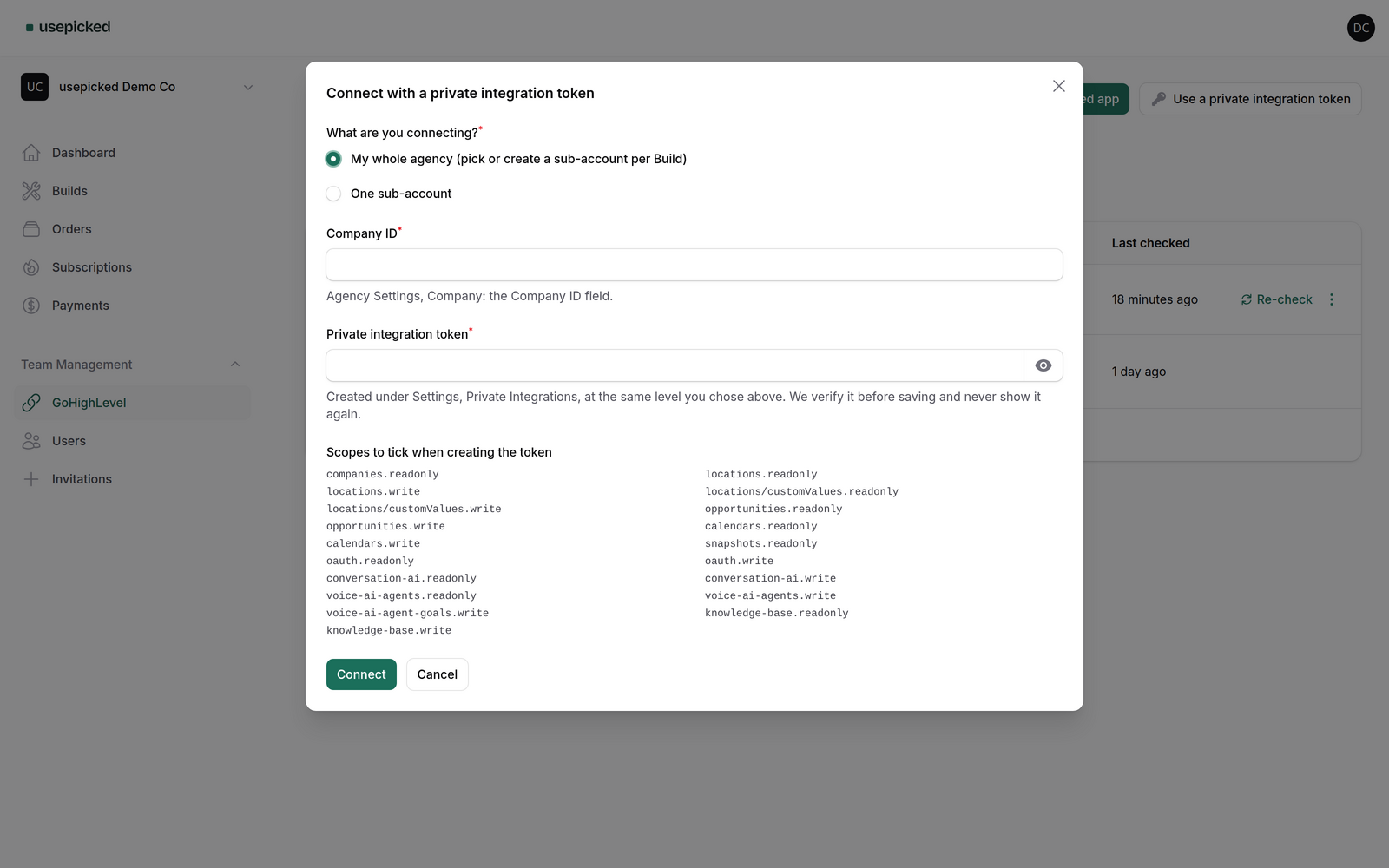
usepickedand continue to the scopes screen. - Tick the scopes usepicked lists in its connect dialog (the exact list is shown there and reproduced below). Ticking extra scopes is harmless but unnecessary; missing one causes provisioning to stop at the step that needs it.
- Save and copy the token. GoHighLevel shows it once.
- Copy the account id as well: Agency Settings → Company → Company ID for the agency, or Settings → Business Profile → Location ID for a sub-account.
Step 2: paste it into usepicked
- In your workspace open GoHighLevel in the left menu and click Use a private integration token.
- Choose My whole agency or One sub-account. The id field changes label to match.
- Paste the Company ID or Location ID, then the token.
- Click Connect. usepicked makes one live call to GoHighLevel to verify the token and read the account name. A wrong id, a token from the other level, or a missing scope is reported in the dialog so you can fix it before anything is saved.
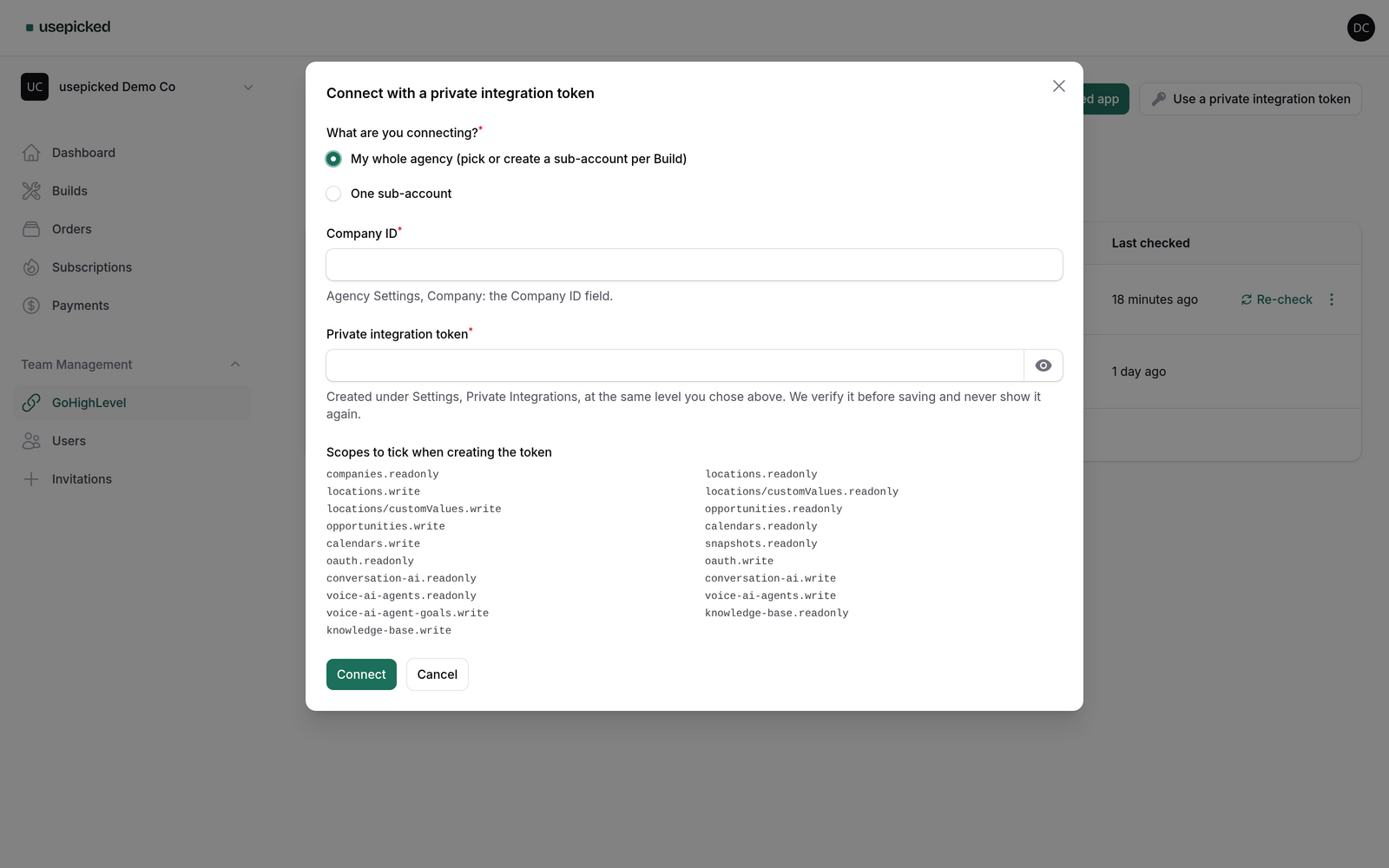
The token is encrypted at rest, never shown again and never written to logs. The account name GoHighLevel returns becomes the connection's display name.
Scopes usepicked asks for
Each scope maps to one thing provisioning does. Read-only scopes let usepicked confirm what is already in the account before writing; write scopes are used only by provisioning steps after you approve a Build.
- companies.readonly, locations.readonly, locations.write: read the agency and its sub-accounts, and create a sub-account from the Delivery step when you ask for one.
- locations/customValues.readonly and .write: read the base-snapshot marker and write the business details the automations personalise on.
- opportunities.readonly and .write: configure the pipeline and its stages.
- calendars.readonly and .write: set up the booking calendar the modules use.
- snapshots.readonly: see the usepicked base snapshot in your agency.
- oauth.readonly and oauth.write: list where the app is installed and mint sub-account tokens (only relevant to app installs).
- conversation-ai.*, voice-ai-agents.*, voice-ai-agent-goals.write, knowledge-base.*: configure the Conversation AI and Voice AI agents and their knowledge base from the approved Build.
Managing a connection
Every live connection on the GoHighLevel page shows who connected it and how, and has three actions: Re-check next to the row, and two more behind the row menu.
- Re-check verifies the credential live and updates Last checked. Use it after changing the token's scopes in GoHighLevel.
- Refresh installed sub-accounts (agency connections created through the app only) asks GoHighLevel which sub-accounts have the app installed. The Delivery step can only target those.
- Disconnect revokes the credential and removes the token from usepicked. If Builds are waiting to be installed through this connection, the dialog lists them; they pause until you connect again. Disconnecting never changes a Build's status and never deletes anything in GoHighLevel.
A connection can also stop working without you touching it: when the app is uninstalled from GoHighLevel, or when a token is deleted there or loses a scope. The Status column then reads Needs reconnecting with the reason underneath, while one you ended yourself reads Disconnected. Connect again to continue; a fresh connection for the same account replaces the old row.
Agency versus sub-account connections
| You connected | On the Delivery step you can | Good for |
|---|---|---|
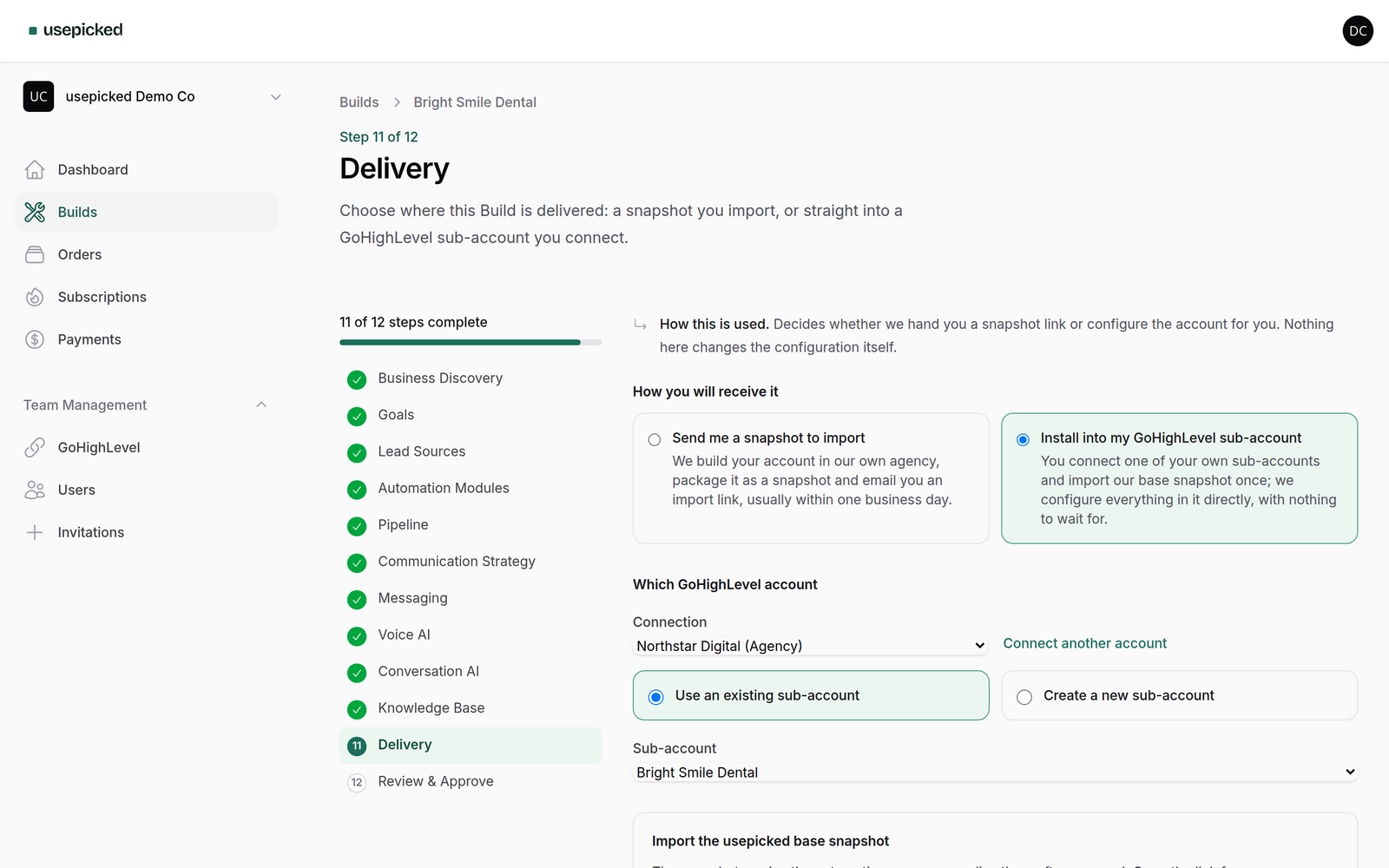
| The agency | Pick any sub-account, or create a new one named after the business | Agencies and consultants onboarding several clients |
| One sub-account | Only that sub-account; it is preselected | A business owner with their own account, or a client-managed account |
You can hold both kinds at once. The Delivery step lists every live connection in the workspace and lets you choose per Build.