17/09/2026 · Setup guides
Install the usepicked app in GoHighLevel
Step by step: install from your workspace or from GoHighLevel, what the permissions mean, what the first open from the sidebar does, and how to uninstall.
By The usepicked team
usepicked is a GoHighLevel Marketplace app. Installing it does two things at once: it connects your agency (or one sub-account) to your usepicked workspace with no token to copy, and it adds a usepicked entry to the GoHighLevel left sidebar so you can run Builds without leaving GoHighLevel. This guide walks through the install from either starting point and explains what you should see at each step.
Before you start
- You need to be an agency owner or agency admin in GoHighLevel. Installing at agency level lets usepicked pick or create a sub-account for each Build; installing on one sub-account limits it to that account.
- A usepicked account is optional. If you install from GoHighLevel first, your workspace is created the first time you open the app from the sidebar.
- Use Chrome or Edge for the first open. The embedded app needs a partitioned sign-in cookie; Firefox and Safari can block it, in which case the app tells you and offers to open usepicked in its own tab instead.
Option A: install from your usepicked workspace
This is the shortest route when you already have a usepicked account.
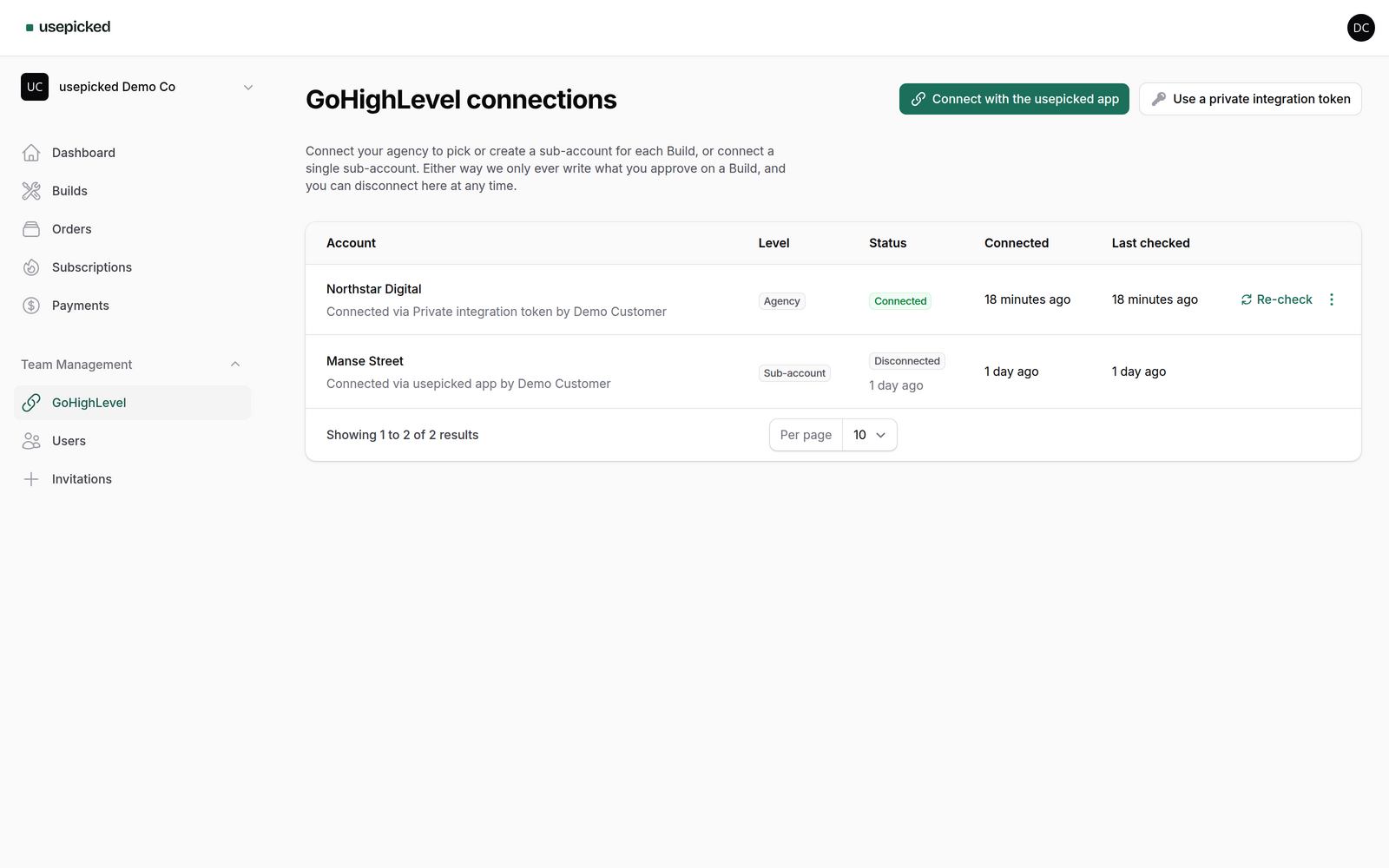
- Sign in at usepicked.com and open GoHighLevel in the left menu of your workspace (under Team Management).
- Click Connect with the usepicked app in the top right.
- GoHighLevel opens its install screen. If you are not signed in to GoHighLevel, sign in first; you come back to the same screen.
- Choose the agency (recommended) or a single sub-account, read the list of permissions and confirm.
- You are returned to the GoHighLevel page in usepicked with the new connection listed, marked as connected through the usepicked app and by whom.
Option B: install from GoHighLevel
Use this route when your team lives in GoHighLevel and you want the sidebar entry before anything else.
- Open the usepicked install link. While the app is listed privately you get this link from us (write to support if you do not have it); once the public listing is live you can also find usepicked in the GoHighLevel Marketplace.
- On the Choose location screen pick your agency, or one sub-account if you only want usepicked there.
- Review the permissions and click Install. The app asks for read access to your company and sub-accounts, the right to create sub-accounts, and read and write access to snapshots. It never asks for contacts, conversations or payments.
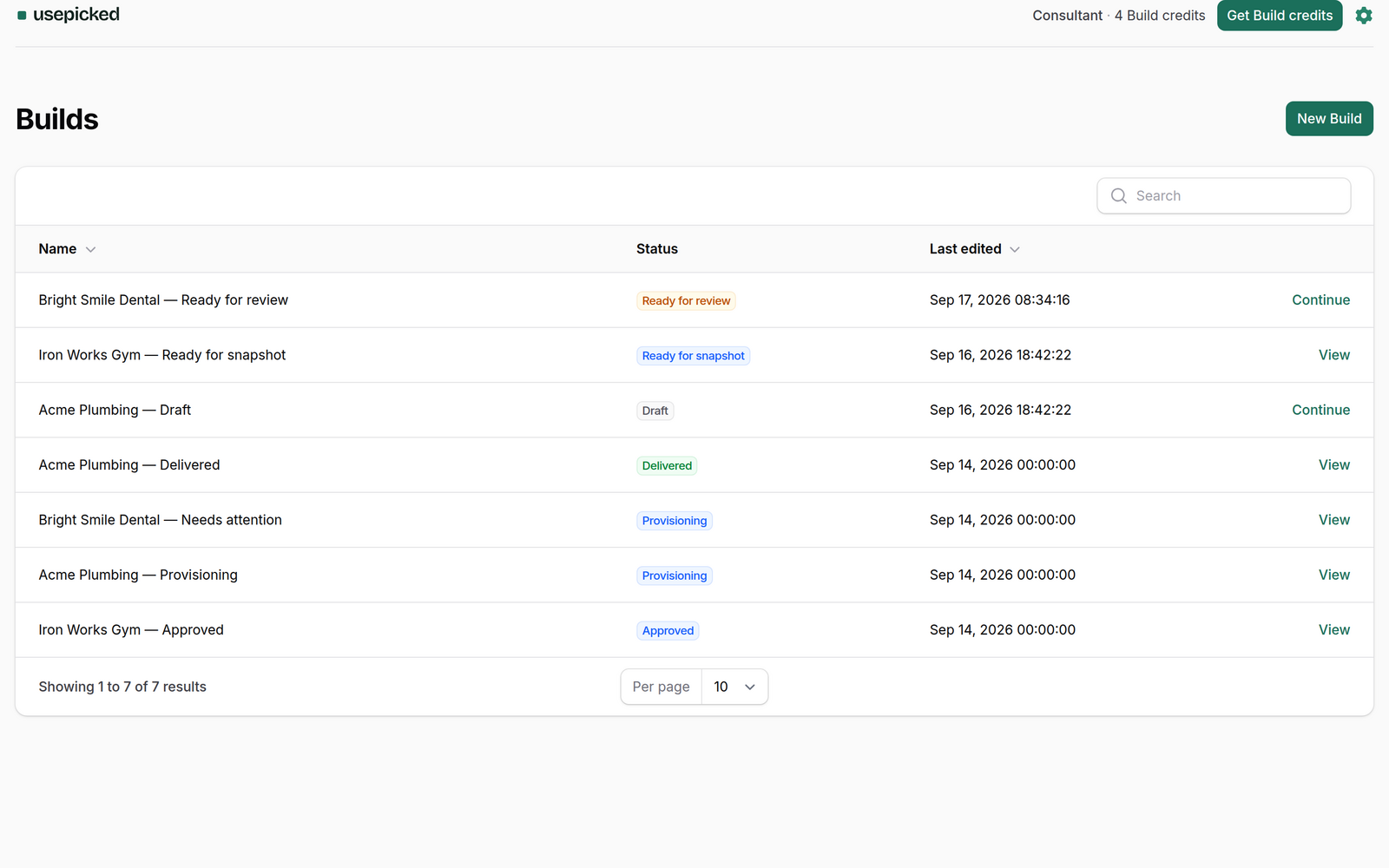
- GoHighLevel sends you back to its dashboard. usepicked is now in the left sidebar of the agency view.
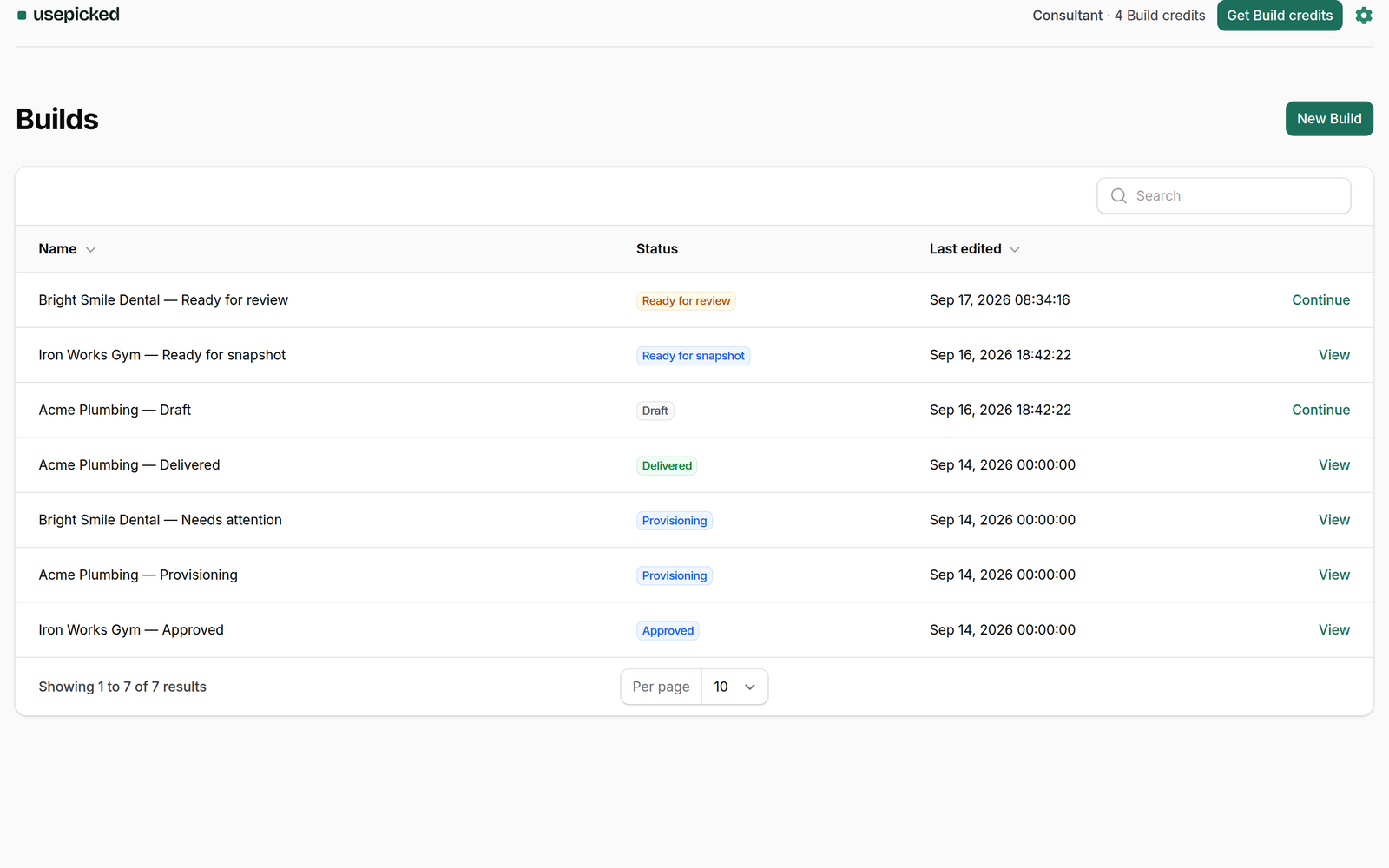
- Click it. The first open takes a few seconds while usepicked verifies the install, then shows your Builds list. If you had no usepicked account, a workspace named after your agency is created for you and you are its admin.
What the install changes, and what it does not
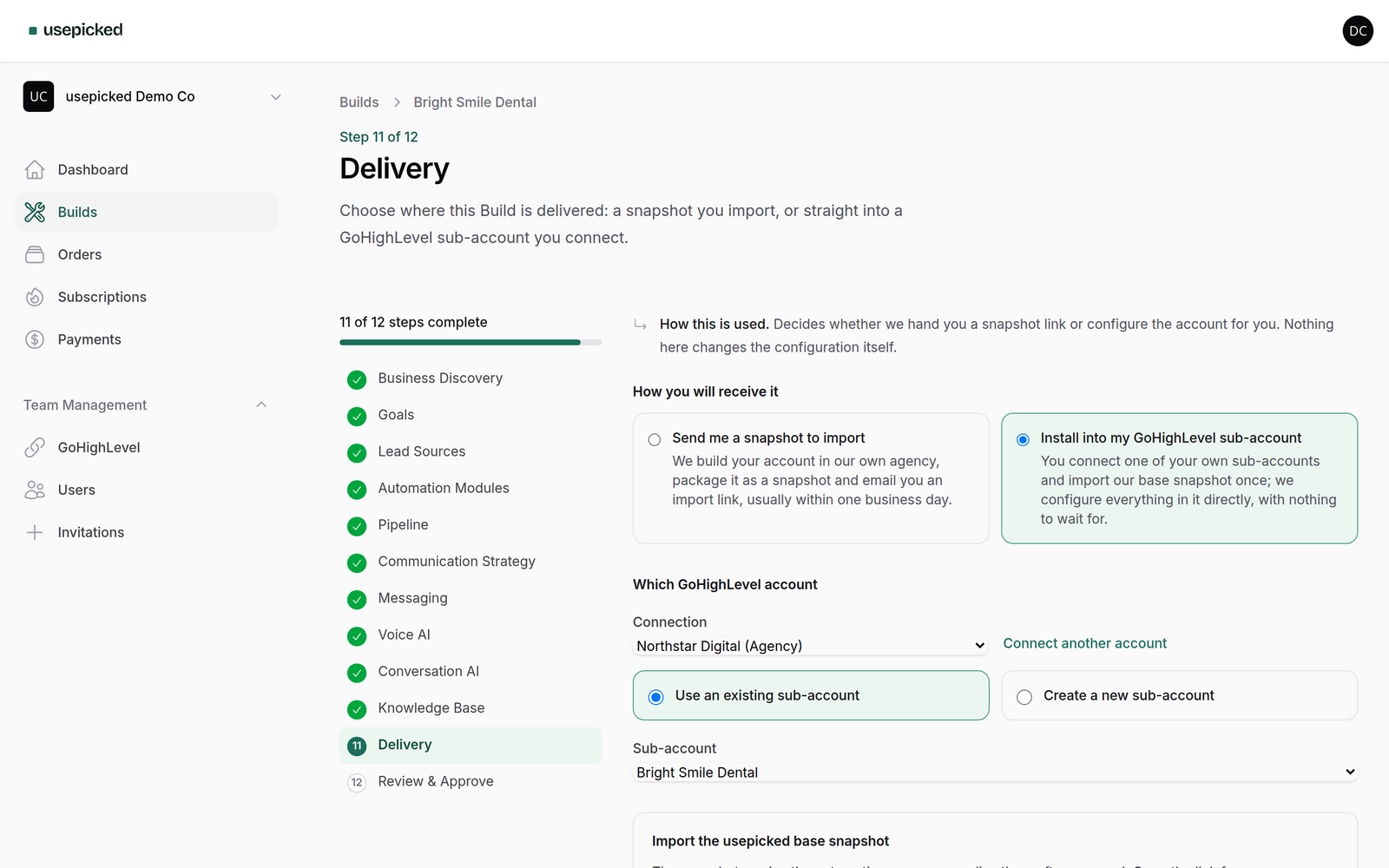
- One connection per agency. An agency install is stored once. Installing the app on additional sub-accounts of the same agency does not create extra connections; it records which sub-accounts the app is present on, which the Delivery step uses when you choose a target.
- Tokens are refreshed for you. Unlike a private integration token, the app's access is renewed automatically and expires only when you uninstall.
- Nothing is written until you approve a Build. The install grants access; every write into your account happens only after you approve a Build on the Review step.
- Billing stays in usepicked. The app is free in the Marketplace. Build credits and plans come from your usepicked subscription, not from GoHighLevel.
Uninstalling
Remove the app from GoHighLevel: open the Marketplace, go to your installed apps and choose uninstall on usepicked, at the same level you installed it. usepicked receives the uninstall event within seconds and revokes the connection. Builds that were going to be installed into that agency are paused until you connect again; nothing is deleted, and no Build changes status because of an uninstall. You can also disconnect from the usepicked side at any time: open GoHighLevel in your workspace and choose Disconnect on the connection.
Troubleshooting
- "Invalid scope(s)" on the install screen. The install link is out of date. Use the Connect with the usepicked app button in your workspace, which always carries the current permission list.
- The sidebar entry shows "Open usepicked from the GoHighLevel sidebar". The page was opened directly in a tab. It only works inside GoHighLevel; use the sidebar, or sign in at usepicked.com for the same workspace.
- "Your browser will not keep you signed in here". The browser refused the partitioned cookie. Allow third-party cookies for gohighlevel.com, use Chrome, or use usepicked in its own tab.
- You landed in an empty workspace. The GoHighLevel user who opened the app has no usepicked account matching their email, so a new workspace was created. Ask a workspace admin to invite that email to the existing workspace (Team → Invitations), then reopen the sidebar entry.
Next: connect with a private integration token instead, or go straight to your first Build.